Panasonic multi-projector dashboard
For easier monitoring of our numerous Panasonic projectors i developed this script. It is a multi-device dashboard that reads the status of the projectors via the PJLink.
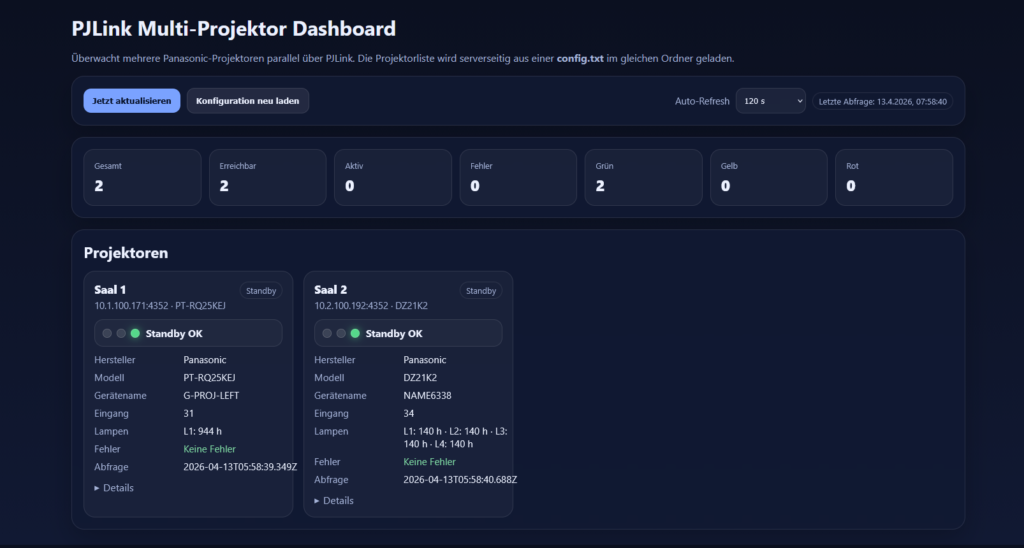
Since there are certainly other people (university campuses, schools, hospitals, companies) who could use this dashboard, I decided to make it available to you here.
Attach the link to the download (ZIP) of the project files.

1. Save Script and Config Files
After downloading, unpack the ZIP file and save the files.
For example under:
C:Panasonic dashboard
Load these three files into this directory:
– panasonic pjlink web monitor. js
– config.txt
– start-dashboard.bat
2. Install Node.js
Go to: https://nodejs.org and invite them LTS version down
Start Installer → Just “Next → Next → Install”
Important: Make sure that “Add to PATH” is activated (is so by default)
3. Which console to use?
You can use any of these consoles for upcoming Commnads:
Windows terminal (recommended)
PowerShell
Command request (cmd)
I recommend:
Command request (cmd)
Start: Win + R → cmd
4. Check the installation
Enter in the console:
node -vIf this happens
v20.x.x
everything is well
5. Starting Script
Enter in the console:
cd C:\Panasonic-Dashboard
node panasonic_pjlink_web_monitor.jsThen you should see:
Alternatively, you can also start-dashboard.bat Batchfile which is contained in the ZIP. At most, you have to adjust the path in the batchfile if you have placed the files elsewhere.
6. Open dashboard in browser
http://localhost:3000 enter in the browser.
Ready – Dashboard is running
If not, the console window of step 5 must remain open, otherwise the service will not work.
Optional: start automatically (Windows)
Option A. Startup Folder
- Win + R
- enter: shell:startup
- The file start-dashboard.bat as a shortcut in the folder (adjust file if the path is different)
- Restart computer and finish
Disadvantage, the Node.exe window must remain open in the taskbar for the dashboard to work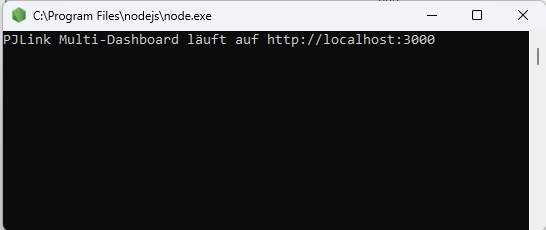
Variant A. as a service with NSSM
If you want it more professionally:
Run Node as a Windows Service
1. Download NSSM
→ Unpack ZIP (e.g. after C:\nssm)
2. Creating a service
In PowerShell or CMD:
C:\nssm\win64\nssm.exe install PJLinkDashboardThen a window opens:
Application Tab:
- Path:
C:\Program Files\nodejs\node.exe- Arguments:
C:\Panasonic-Dashboard\panasonic_pjlink_web_monitor.js- Startup Directory:
C:\ Panasonic_Dashboard3. Install and start
nssm start PJLinkDashboard4. Finished
Now your dashboard is running:
- in the background
- without console
- also after restart
I hope the script helps one or the other. Have fun with it and until the next post


